|
|
|
|
|

ClassLink is our Single Sign-On Solution
ClassLink solves the problem of too many passwords, and too many files scattered about. It’s a one click single sign-on solution that gives students access to everything they need to learn, anywhere, with just one password. Accessible from any device, ClassLink is the perfect tool for ensuring the success of our students.
To access ClassLink open Google Chrome and go to http://ncs.school
Many of the SSO apps require a web browser extension to function. There are extensions for several browsers, but we do recommend Chrome.
If you need info for different browsers, click here. To watch a video on adding an extension to Chrome, click here.
Apple iPad Info
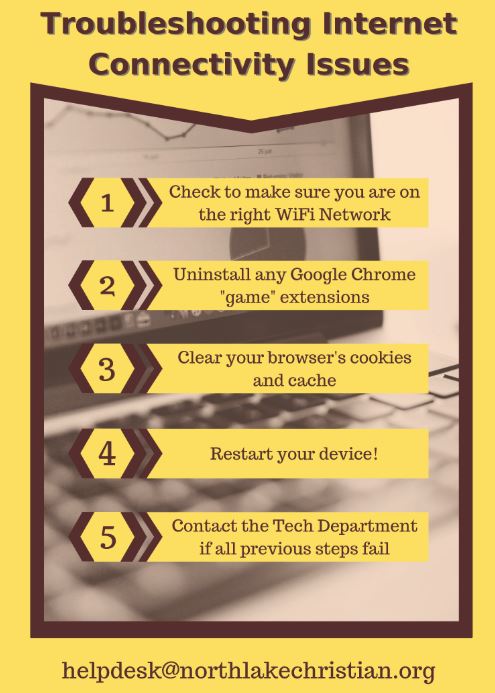
If you are experiencing off campus WiFi Connectivity, follow these tips:
- Clear the history and cookies from Safari on your iPad
- Clear the cache & cookies from Chrome
- Restart the iPad
Troubleshooting Home Wireless
Apple MacBook Air
Apple ID FAQ's
NCS uses Managed Apple IDs when needed and are owned and controlled by the school, which means the institution can reset passwords, limit purchasing and communications, and set up role-based administration.
Apple ID Tools for Apple IDs issued prior to July 2016:
Reset your password at https://iforgot.apple.com
Manage your Apple ID at https://appleid.apple.com
NCS uses Managed Apple IDs when needed and are owned and controlled by the school, which means the institution can reset passwords, limit purchasing and communications, and set up role-based administration.
Apple ID Tools for Apple IDs issued prior to July 2016:
Reset your password at https://iforgot.apple.com
Manage your Apple ID at https://appleid.apple.com
Web Browsers
Which browser should I use?
Which browser should I use?

On PC or Apple MacBook - Use Google Chrome
for ClassLink, Gmail, Email, Google Docs, Google Drive, or FACTS SIS (RenWeb 1)
and all your web browsing
for ClassLink, Gmail, Email, Google Docs, Google Drive, or FACTS SIS (RenWeb 1)
and all your web browsing
On iPad - You can use Safari as an alternate. Note: not all ClassLink or Google features are supported. Use Chrome.
NCS Does Not Support Any Other Browser(s)
NCS Does Not Support Any Other Browser(s)
NCS on campus WiFi is for school issued technology and will not support student owned devices. A faculty member may sponsor a guest for temporary access, but does require registration. NCS Faculty should use the NCS Faculty WiFi network on personal devices. This will require you to login with your network user id and password. All school issued MacBook's will auto join the WiFi network. Guests may obtain access to the WiFi network during school hours only. You must have a school sponsor and complete a registration form. Upon approval you will be sent an access key. The key is unique to you and valid for 48 hours. If you need assistance with access please come to the Technology Center in the Fine Arts Building to obtain a certificate. You can submit a request for access here. Guest Steps to Join WiFi:
BYOD Printing Once you are connected to on campus WiFi you can open http://byodprinting.com and follow the directions Technology Store Form Technology Payment Form |
RenWeb Is Now FACTS
Over the coming months, you’ll still see the RenWeb name. By the end of 2019, though, it will be completely phased out. You’ll also notice improvements in our products in the near future. Those upgrades will happen incrementally, so you experience the changes over time and not all at once.
You can logon to Parents Web without the app from any mobile device.
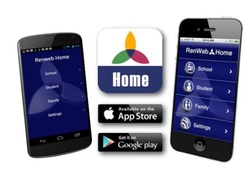
As of May 2019 the RenWeb Home App is still Available for both Android and iPhone Users.
The app is not required to access RenWeb as you can always use the web browser on your phone to login. To use the app, you must download it from your phones store. When you download the app from the store, it will tell you there is a $4.99 annual subscription per household. As long as you are logging in with our school code of NL-LA and using your Parent account, you will not be charged.
For more info, click here
Over the coming months, you’ll still see the RenWeb name. By the end of 2019, though, it will be completely phased out. You’ll also notice improvements in our products in the near future. Those upgrades will happen incrementally, so you experience the changes over time and not all at once.
You can logon to Parents Web without the app from any mobile device.
As of May 2019 the RenWeb Home App is still Available for both Android and iPhone Users.
The app is not required to access RenWeb as you can always use the web browser on your phone to login. To use the app, you must download it from your phones store. When you download the app from the store, it will tell you there is a $4.99 annual subscription per household. As long as you are logging in with our school code of NL-LA and using your Parent account, you will not be charged.
For more info, click here

Available to current and newly accepted college students and their parents, as well as faculty, staff, and homeschool teachers of all grade levels. For more info go to: https://www.apple.com/us-hed/shop
We also have a student store at Dell. Here you can find member discounts. Go to this link www.dell.com/mpp/NorthlakeChristian
Mosyle Teacher Dashboard - use the app on your MacBook or iPad.
LightSpeed Teacher Dashboard
LightSpeed Teacher Dashboard

Access to Teacher Resources - is located in itslearning.com Please visit Faculty Development class via ClassLink.
Access to Student Tech Info - is located in itslearning.com Please visit your bootcamp class via ClassLink.
If you need to schedule a remote or off campus support session, please submit a new Technology Request (button at top of page) and we can provide you with a link to share your screen with us.
During school hours, we are also available via instant chat, look for the pop up in the lower right hand corner.
Visit www.OnGuardOnline.gov for social networking safety tips for parents and youth
Access to Student Tech Info - is located in itslearning.com Please visit your bootcamp class via ClassLink.
If you need to schedule a remote or off campus support session, please submit a new Technology Request (button at top of page) and we can provide you with a link to share your screen with us.
During school hours, we are also available via instant chat, look for the pop up in the lower right hand corner.
Visit www.OnGuardOnline.gov for social networking safety tips for parents and youth

Secure Volunteer: If you have been asked to complete a Coach or other volunteer background, please click the apply now button below.
Copyright © 2020 NCS. All Rights Reserved
Northlake Christian School
70104 Wolverine Drive
Covington, LA 70433
Northlake Christian School
70104 Wolverine Drive
Covington, LA 70433